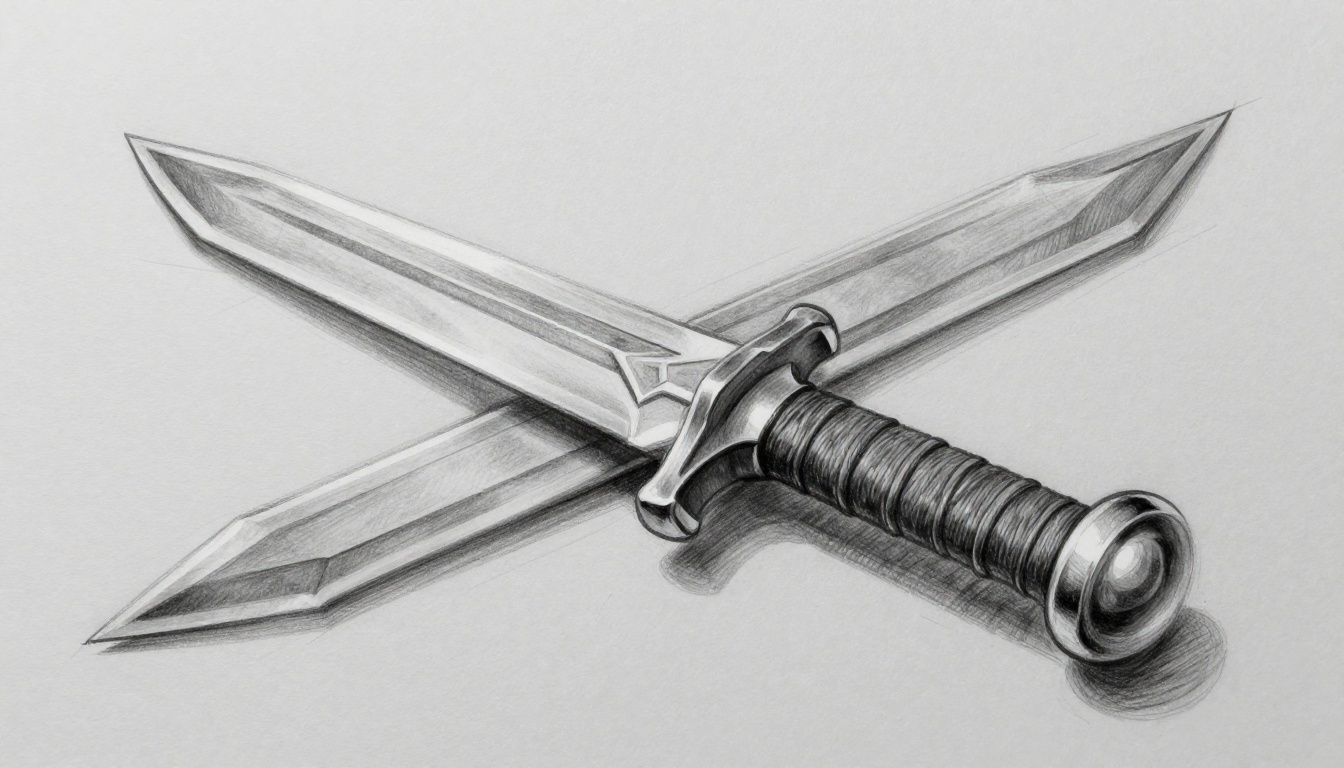
Imagine a flat, plastic-looking sword in your 3D scene. It fails under every light. Now picture that same sword with realistic glints, scratches, and subtle glows at the edges. PBR, or Physically Based Rendering, makes this switch possible.
You struggle with fake-looking materials because old methods ignore real physics. PBR fixes that. It uses simple rules from nature so your models shine right in games, animations, or product viz.
This guide breaks it down for newbies. You’ll learn core ideas, key maps, a quick build process, and fixes for common slips. Let’s turn your dull assets into eye-catchers.
What Sets Physically Based Rendering Apart from Old-School Methods
Old rendering guessed at light bounces. Results looked off in new scenes. PBR changes that because it follows physics laws for consistent shine.
Think of sunlight on a wet road. Water makes sharp reflections. Dry asphalt scatters light softly. PBR mimics this with math. Energy stays conserved, so bright spots never blind you. Fresnel effect adds edge glows, like staring at a phone screen sideways. Microfacets act as tiny surface bumps that bend light naturally.
Traditional methods tweak by hand for each light. They break fast. PBR shaders handle it all automatically. That’s why Blender, Unity, and Unreal Engine build around it now. Your materials work anywhere.
Artists save time too. One set of textures fits multiple tools. No more repaints for spotlights or dusk.
The Physics Principles Powering PBR Realism
Energy conservation keeps things believable. A mirror reflects light but never amps it up brighter than the source. So scenes stay balanced.
Fresnel effect ramps up reflections at grazing angles. View a car hood head-on; it’s dull. From the side, it flares. PBR bakes this in.
Microfacets explain rough surfaces. Every bit of plastic or metal has invisible dents. They scatter light like brushed aluminum on a pan. Or think of a worn toy car; highlights blur just right.
These rules tie together. Light paths stay true. Your rusty pipe gleams real, not cartoonish.
Master the Essential Maps That Build Every PBR Material
PBR materials stack simple images called maps. Each controls one trait, like color or bumpiness. Plug them into a shader, and physics does the rest.
Start with photo scans or tools for quality. Linear color space matters. It stops colors from looking faded.
Four core maps form the base. Others add polish. Match them to real objects for pro looks.
Albedo Map: Capturing Pure Surface Color
Albedo sets the flat color, no lights or shines included. It’s like paint on bare canvas.
Non-metals use it for all color. Metals tint reflections with it instead. Sample from photos. Desaturate any bright spots first.
Pack channels smartly to save space. Never bake shadows in. That kills the physics.
Metallic Map: Distinguishing Shiny Metals from Dull Plastics
This grayscale map sorts materials. Black means non-metal, like wood or plastic. Reflections stay neutral white.
White flags metal. Albedo colors those bounces gold or copper. Alloys blend smooth in between.
Don’t crank everything metallic for fake bling. Check real photos. A plastic button stays black here.
Roughness Map: Dialing in Shine from Glossy to Gritty
Roughness blurs reflections. Zero means mirror sharp. One makes diffuse matte rock.
It’s the flip of old gloss maps. Pair low roughness with high metallic for oiled steel. High roughness on metals dulls them like old coins.
Base it on close-ups. Some software inverts it, so flip if needed.
Normal and Height Maps: Adding Texture Without Extra Polygons
Normal maps fake bumps with RGB colors. They tweak surface angles for view-based lights. Bumps pop from any side.
Height maps add depth illusion via parallax. Bake normals from detailed sculpts. Tile them seamless.
Hide seams by matching edges. No poly count spike, just rich detail.
Supporting Maps: Ambient Occlusion, Emissive, and More
Ambient occlusion shades cracks dark. It boosts contact realism.
Emissive maps glow from within, like fire or screens. Opacity handles see-through parts.
These enhance cores. Grab free packs online to test fast. Four basics get you far first.
Build Your First PBR Material in Minutes
Grab free tools like Blender. Pick a simple object, say a rusty pipe. Preview with real lights for truth.
HDRI skies sell the look best. Follow these steps anywhere.
Gather Free PBR Maps and Set Up Your Scene
Hunt CC0 sites for textures. Download a metal or leather pack with all maps.
Open Blender or Unity. Add a cube or pipe model. Create a new PBR material node.
Import maps as textures. Scale your object small.
Assign Maps and Tweak for Perfect Results
Hook albedo to base color input. Slot metallic and roughness next.
Feed normal map in tangent space. Tweak tiling for repeat. Rotate if bumps flip.
Boost height a bit. Preview spins look alive now.
Light and Test Your Material Like a Pro
Drop in an HDRI environment light. Orbit the view.
Check edges for Fresnel glow. Match against phone photos.
Render or export. You’ve got a keeper.
Steer Clear of These PBR Beginner Traps
Newbies hit walls fast. Colors wash out. Everything plastics up. Lights flop.
Spot these, fix quick. Confidence builds.
Fixing Washed-Out Colors and Gamma Nightmares
Gamma mismatches kill vibrance. Albedo looks pale because software expects linear data.
Set color maps to sRGB. Non-color like roughness stay gamma. Check viewport mode.
Test side-by-side. Colors pop true now.
Balancing Shine: Avoid Plastic Toys or Mirror Balls
Crank roughness too low, and flats go glossy toy-like. Too high flats everything.
Gold runs 0.1 to 0.3 roughness. Use reference charts. Eyeball against pics.
Dial per material. Realism wins.
Overlooked Lighting That Ruins PBR Magic
Default lights ignore environment. PBR needs full skies or cubemaps.
Add HDRI properly. Test front, side, back angles.
Magic returns. Scenes hold up.
PBR boils down to physics plus smart maps. Your first rusty pipe proves it works easy.
Download free textures today. Fire up Blender. Build something and share in comments. What material trips you?
Push further with procedural nodes later. Hollywood polish sits in your hands now. Go make it shine.