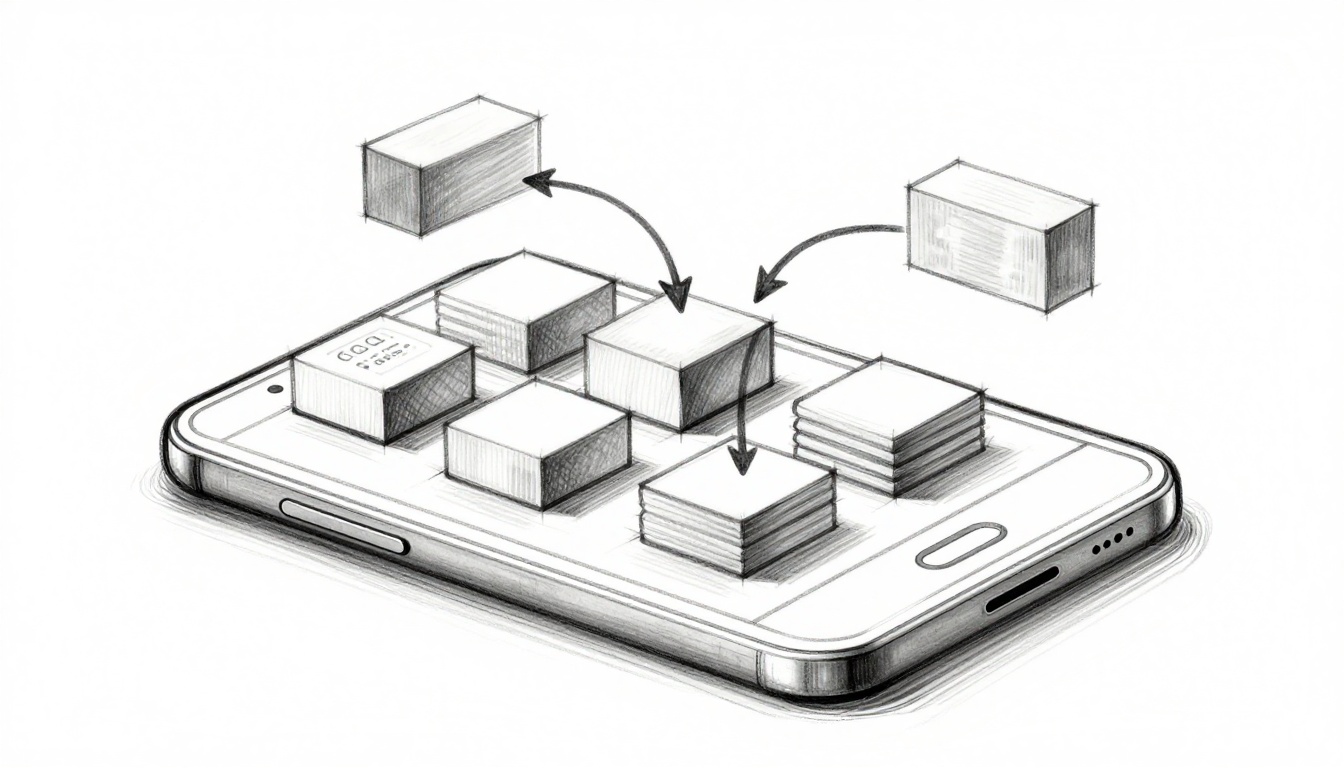
Picture this. You’re deep into an exciting game chase on your buddy’s old Android phone. Suddenly, frames drop. The action stutters. Players quit in frustration.
Draw calls cause that mess. They act like a manager yelling individual orders from the CPU to the GPU for each object on screen. Low-end hardware struggles because weak CPUs can’t handle hundreds of these calls per frame. You end up with choppy visuals and lost players.
This guide shows you simple steps to spot and cut draw calls. You’ll boost frame rates while keeping graphics sharp. First, learn to profile issues. Then, batch objects and use instancing. Finally, add culling for polish. Let’s fix your game now.
Spot Draw Call Problems by Profiling Your Game Right
Start here. Profile your game to see draw call counts. Free tools reveal spikes in busy scenes. Test on mid-range phones early, like a Snapdragon 680 device. Set a goal: under 100 draw calls per frame for 60 FPS on weak GPUs.
Unity Profiler works great. Enable the stats window. Run your scene. Watch the graph for red spikes during action. Record baselines on target hardware.
Unreal users grab Insights. Launch it from the editor. Connect remotely over WiFi to a low-end phone. Check the GPU frame time tied to draws.
Pick the Best Profilers for Quick Insights
Unity’s built-in profiler suits most indie devs. Open the window, hit record, and play. It shows draw calls next to batches. Remote profiling lets you test phones without cables. However, watch CPU time; it often hides draw call overhead.
RenderDoc captures frames for deep dives. Hook it to your build. Replay frames offline. Pros include exact call lists. Use it for WebGL via Chrome too.
Chrome DevTools handles web games. Open inspector, go to performance tab. Record a session. It flags high draw counts in canvas renders. Simple setup, but pair it with device emulation for low-end accuracy.
Decode Profiler Data to Find Your Worst Offenders
Look at the graphs first. Total draw calls versus batches tell the story. High draws with low batches mean scattered objects.
Sort by cost. Focus on the top 20% causing 80% pain. For example, 500 draws from props across a level. Material switches spike calls too. Note peaks in explosions or crowds. Then, target those scenes next.
Batch Meshes and Textures to Slash Draw Calls in Half
Batching combines objects into fewer GPU calls. Static batching merges fixed pieces at build time. Dynamic handles small movers at runtime. You can drop from 200 calls to 50 easily.
Group by material first. Same shader and texture? Batch them. Limits exist, like 300 vertices per group. Test changes on low-end gear right away.
Texture atlases pack images into one sheet. Engines share the material. Fewer binds mean fewer calls.
Static Batching for Your World’s Fixed Pieces
Mark objects as static in your engine. Unity combines meshes automatically during builds. The GPU gets one call for a wall of crates.
Benefits shine on low-end CPUs. Less setup work per frame. But watch VRAM use; combined meshes eat more. Balance by testing scene loads on old phones.
Dynamic Batching for Action-Packed Moments
Engines batch small objects with matching materials. Keep scales uniform. Avoid skinned meshes or complex shaders. A crowd of 20 foes might merge into five calls.
Enable it in project settings. Results smooth out chases. For instance, falling debris batches well if verts stay low.
Texture Atlases: Pack Sprites Smart to Unite Materials
Use tools like Unity’s sprite packer. Drag sprites into one atlas. Import as a single texture. Now, similar objects share it.
Mobile GPUs love this. Fewer texture switches cut calls by half. Pitfall: keep atlases under 2048×2048 pixels. Overflow crashes old hardware.
Leverage Instancing and Fewer Materials for Big Wins
Instancing draws hundreds of identical objects with one call. Think trees or bullets. Enable it in shaders. Engines handle matrix buffers to the GPU.
Cut unique materials too. Merge similar ones. Atlases help here. Explosions go from 1000 calls to under 10. Benchmarks show 60 FPS on integrated graphics.
GPU Instancing to Handle Armies or Forests Effortlessly
Flag meshes for instancing. Unity materials have a checkbox. Shaders compute positions from buffers. A forest of 500 trees uses one draw.
Test grass fields. Old devices hit smooth frames. However, dynamic lights limit batches. Static setups win biggest.
Merge Materials Ruthlessly Without Visual Loss
Audit your scene. List all materials. Combine albedo and normal variants into one shader. Use engine graphs for tweaks.
Aim for under 50 unique per level. Visuals stay sharp. CPU load drops fast as a result.
Layer On Culling and LOD for Non-Stop Performance
Culling skips off-screen work. Frustum culling handles views. Occlusion hides blocked objects. LOD swaps simple meshes far away.
Stack these on batching. Cuts reach 90%. Enable engine defaults first. Verify drops in your profiler.
LOD Systems That Adapt to Distance Seamlessly
Group meshes in LOD setups. Define three levels: high poly close, low far. Switch at set distances.
Low-end devices gain double. Poly drops reduce fill rate too. A cityscape LODs to wireframes at range.
Occlusion Culling to Ignore Hidden Gems
Bake occlusion in Unity. Use portals for interiors. Hardware queries work on modern mobile.
Huge wins inside buildings. Players behind walls vanish from draws. Frames stay steady during fights.
Optimizing draw calls transforms your game. Profile to spot issues. Batch and instance for core cuts. Culling polishes it all. Test on a cheap phone today.
You’ll see smooth play everywhere. Players stick around longer. Share your before-and-after FPS in the comments. What scene did you fix first? Subscribe for more tips on low-end wins.